Why Your Patreon Video Looks "Zoomed In" — and Why It's Actually Fine


We've had a couple of creators ask about how ReedTV videos look inside a Patreon post — first about black bars, and then about the video looking a little "zoomed in." Both come down to a change Patreon made on their end, so we want to explain exactly what's going on, what we did about it, and why your video is completely fine.
Update: This is now a setting you control. By default your videos fill the Patreon card (no black bars), but you can switch to the black-bars look anytime. Jump to Now it's your choice.
First, the black bars
Patreon recently changed how it displays embedded videos. For every third-party video provider except YouTube and Vimeo, Patreon now shows the player inside a post card that is wider and shorter than a standard 16:9 video. Because your 16:9 video doesn't match that shape, Patreon left big black bars on the left and right of the player.
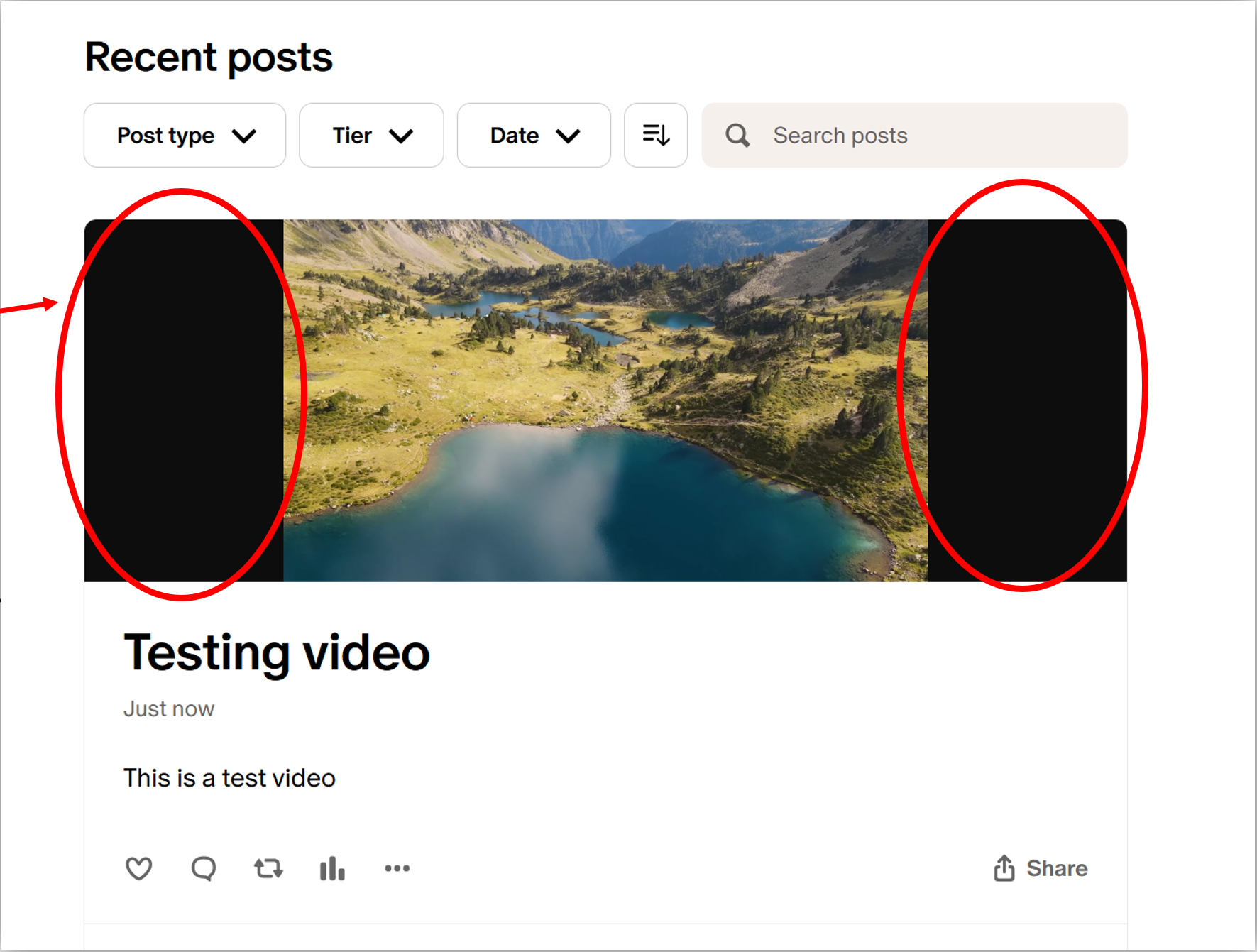
What we changed
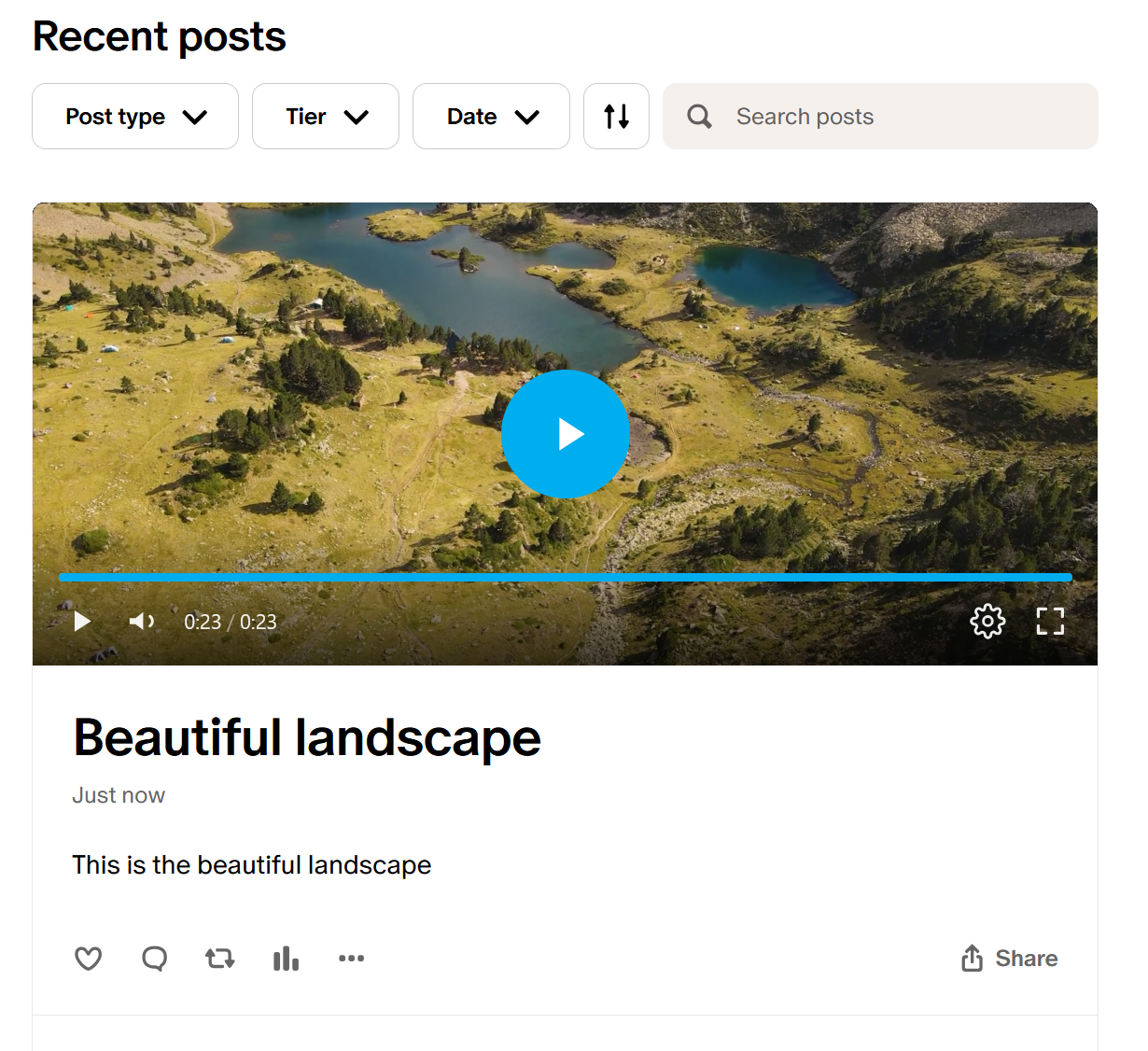
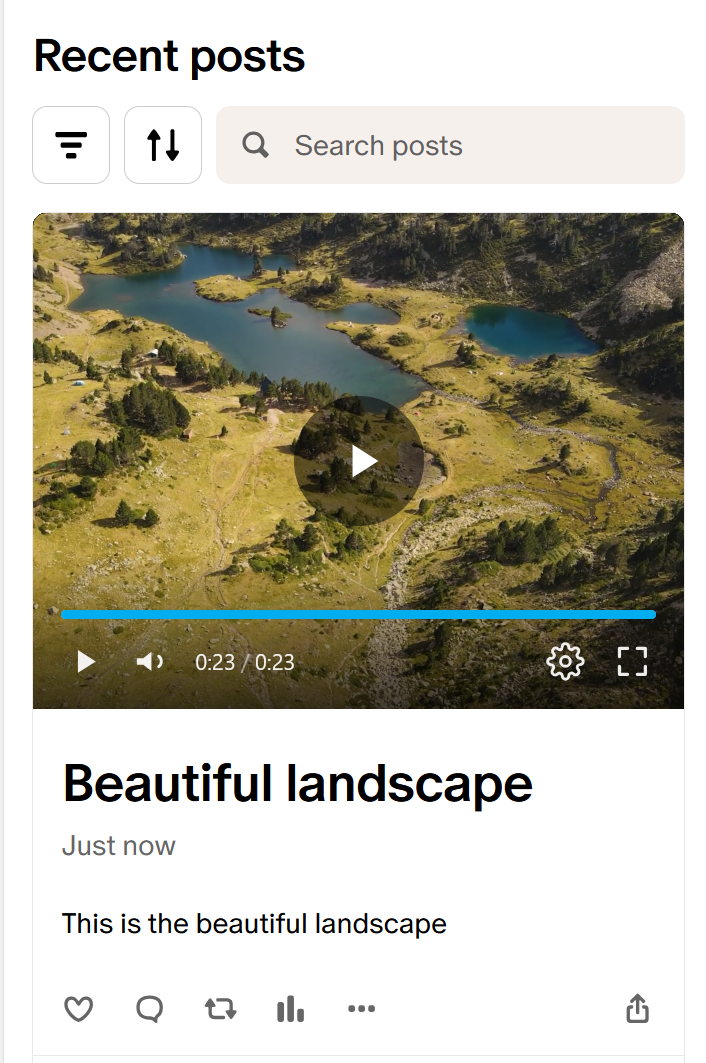
A creator asked if we could make the video fill the space instead of showing those black bars. We shipped an adjustment on our end so the player now fills the full width of the Patreon post card. Here's how it looks now on desktop and on mobile:
So why does it look "zoomed in"?
Here's the key part. Patreon's post card crops the video area to a shape that is not 16:9 — it's shorter than a real 16:9 frame. To fill that shorter area edge-to-edge (and get rid of the black bars), the player has to scale the video up until it covers the whole card. Since the card is shorter than the video, a little is trimmed from the top and bottom in that inline preview. That's what reads as "zoomed in."
To be clear about what is not happening:
- Your video is not actually zoomed in, cropped, or re-encoded.
- The quality is unchanged — it's the same file you uploaded.
- Nothing was cut from the video itself. Only the inline preview area on the Patreon card is shorter than 16:9.
A quick picture of what's happening
Here's a simulation. The whole image below is your full 16:9 video. Patreon's post card only reveals the middle band — the solid "play zone". The dashed top and bottom are still part of your video; they're simply hidden behind the card, not cropped out of the file.
How to see the full frame
The complete 16:9 video is always there. Just click the full-screen icon in the bottom-right corner of the player — the video expands and plays as normal, edge to edge, with nothing cropped. The "zoomed" look only applies to the small inline card view that Patreon squeezes into a non-16:9 box.
Now it's your choice
Because Patreon's video card isn't 16:9, there's a genuine trade-off: fill the card (no black bars, but the inline preview trims a little top and bottom) or show the whole video (nothing hidden, but black bars on the sides). Different creators prefer different things — so instead of one setting for everyone, you can now pick.
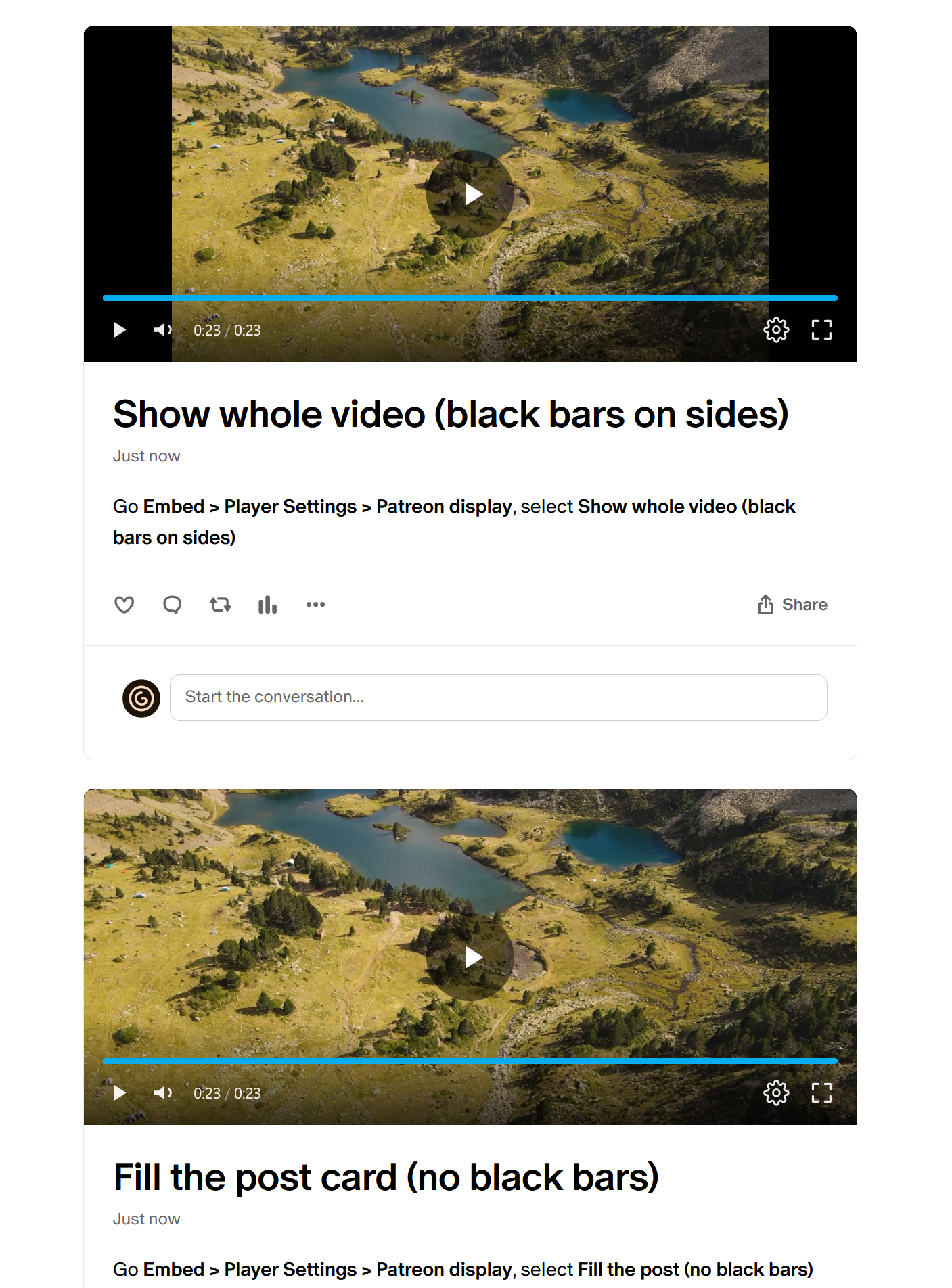
Go to Embed → Player Settings → Patreon display and choose:
- Fill the post card (no black bars) — the default. The player fills Patreon's card; a little top/bottom is hidden in the inline preview, and full-screen always shows the whole frame.
- Show whole video (black bars on sides) — the entire 16:9 frame stays visible, with black bars filling the extra space.
This only changes how your videos look on Patreon — embeds on other sites are unaffected either way, and you can switch back and forth whenever you like.